
- Blog Post
- Estimated Read Time 2:00
- Getting Started
How to Remove Users From A Company Account
Deleting Your Own Account
If you are a user of a company account and you no longer need to use BillTrack50, you can delete your account.
- Click on your name in the top right hand corner and select Manage Account.
Then click the Delete Account button.
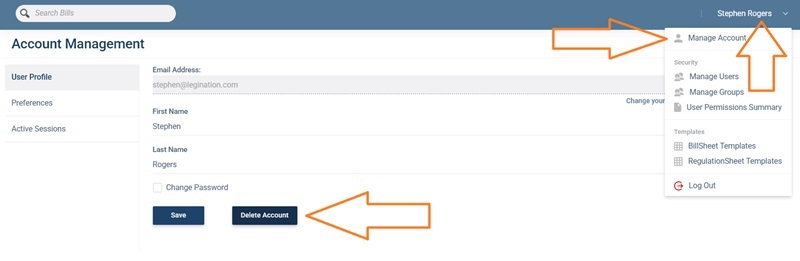
This will remove you as an individual user but it will not delete the company, any bill sheets you have created, or affect any of the other users of that company.
Removing a User Account
The company administrator or any security administrator can also delete any other user from the account:
Click on their own name in the top right hand corner and select Manage Users.
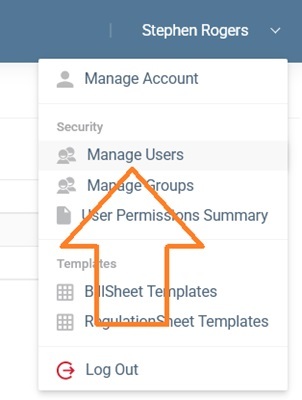
- Then click Edit next to the person they want to remove.

- Finally click the red Delete button at the top.
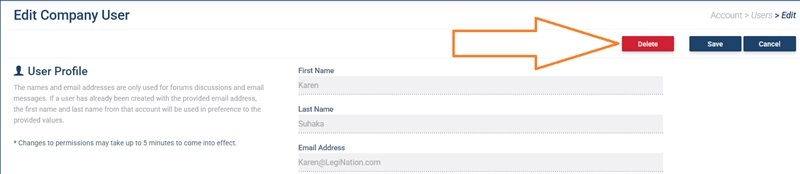
Note: a company administrator CANNOT delete their own account. They must first transfer the administrator privileges to someone else:
- Click on their own name in the top right hand corner and select Manage Users.
- Then click Edit next to the person they want to make the new administrator.
- Then check the Company Administrator box in the Roles tab.
Finally click Save at the top of the page. This will log them out. They will need to log back in to follow the instructions above to delete their account.
Deleting All Personal Data
We routinely remove our record of logins, ip addresses, and other personal data and records of your account and activities, after a short period of time. However we do not remove your main record (name and email address) from our database if you delete your account, in case you decide to return in the future. If you do want us to remove this information, then contact us and we will be happy to do so. See our privacy policy for more details.