
- Blog Post
- Estimated Read Time 5:00
- Advanced
Managing Hidden Regulations Effectively
You are probably familiar with the Hidden tab on bill sheets. If there is a bill in your bill sheet that is not of interest to you, you click the X next to it and it will move to the Hidden tab. We won't send you any alerts about it, and it won't clutter up your bill sheet, but if you change your mind you can go to the Hidden tab and unhide it.
Hiding regulations works in much the same way but there is an important difference in how you use the feature - legislation is a linear process, while regulations are circular. For example, Oklahoma’s SB10 can come up every year, and it would be different each time, while Ohio’s section of administrative code 3745-10-02 is the same every time it is referenced.
This means that a regulation you've hidden could be amended years from now and it won't show up in your regulation sheet (because it's already in the Hidden tab) and you won't get alerts on it.
So how can you manage this issue?
Custom Columns
To stay on top of your hidden regulations, it's a good idea to create some columns that will allow you to categorize your hidden bills. To learn how to create custom columns and add them to your template, see this post.
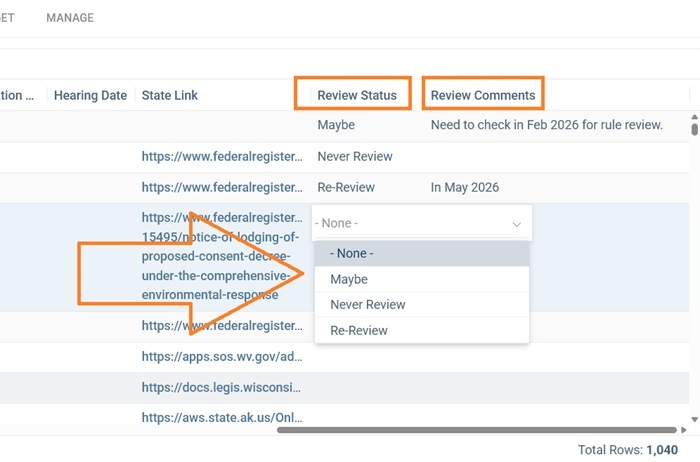
Below, you can see that I've added two custom columns to my regulation sheet template - a single select drop down menu called Review Status where I can indicate whether I want to review a regulation in the future and a text column where I can add notes such as what might trigger a review. You might also want to add a date column to show when you should review a regulation.
Hide The Regulations
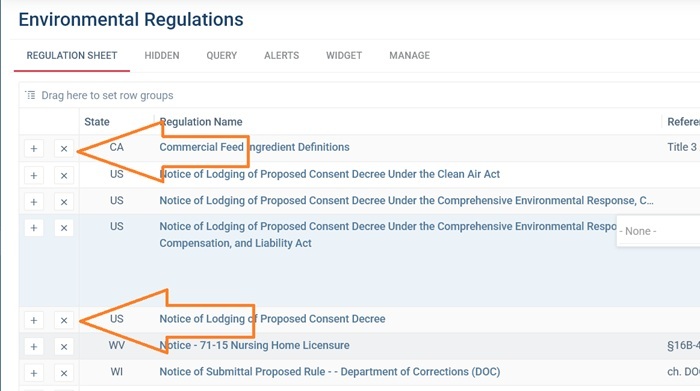
I can now go through my regulation sheet and hide those regulations I'm not interested in following, by clicking the X next to them:
The regulations I've hidden show up in the Hidden tab:
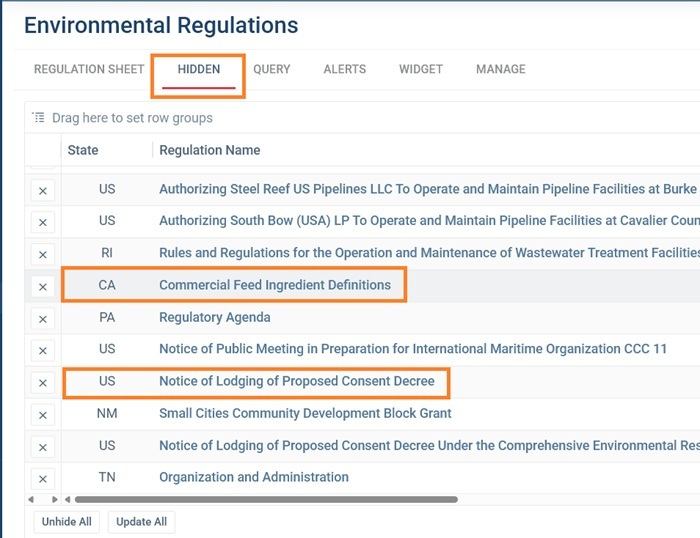
I can periodically review the regulations that I've hidden in the Hidden tab, and using the information in the Review Status and Review Comments columns I can decide whether I need to take another look at them.
In particular, I'm comparing the version date to the hidden date - if the version date is later than the hidden date then the regulation has been updated since I hid it. So I can first sort on the version date to bring the newest versions to the top of my sheet to make the comparison easier.
I'd suggest, also, that you arrange your column template to put the version date next to the hidden date to make the comparison easier. This post explains how to reorder columns in a template. Alternatively, you can just click on the column header and drag it to where you want it to be and it will be there just for the duration of the review session.
Then I can check the review status and comments I made to decide whether I need to look at the new version.
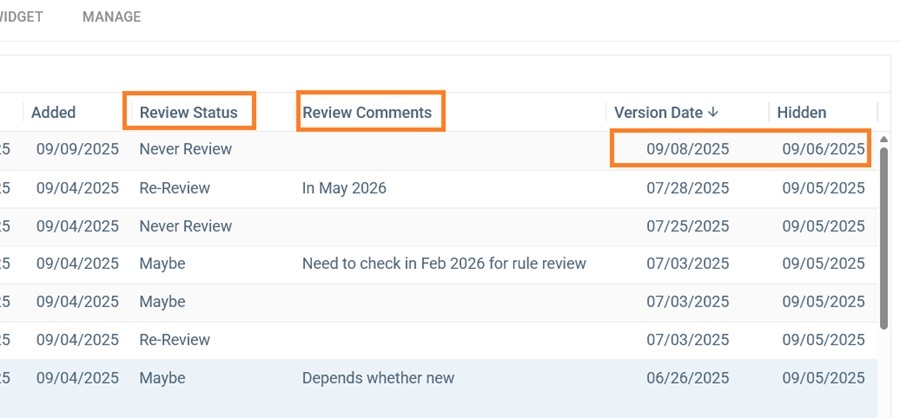
You can see that for the first regulation above, I hid it on September 6 but the latest version is from September 8, so I do need to check that one to see if the change is important to me. Usefully though, my review status is Never Review so I don't need to bother actually looking at the new version - this isn't a regulation that interests me.
The Alerts View
You may not have the time or the inclination to check the hidden tab for all your regulation sheets periodically. So there is another way to quickly see whether any hidden regulations have been updated. If you click Alerts on the main menu to the left you will see a summary grid of recent alerts that we've sent you. There are a number of different alerts you can see:
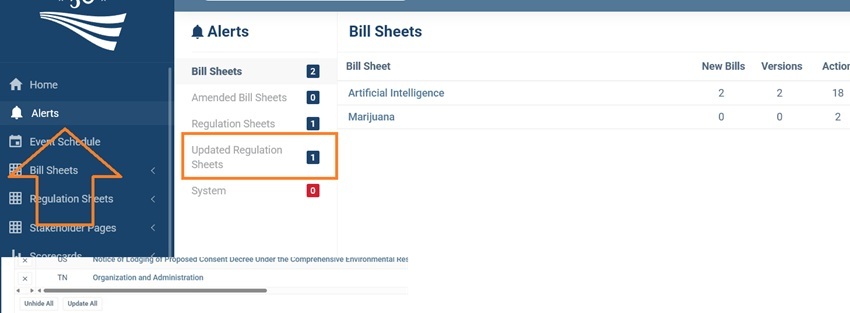
It defaults to bill sheets, but you can see an option for Updated Regulation Sheets. This option shows you when a regulation that you have hidden has subsequently been updated - i.e. it has a new document of some kind. You can see that I have one regulation sheet with a hidden regulation update. I can click Updated Regulation Sheets to see the regulation sheet:
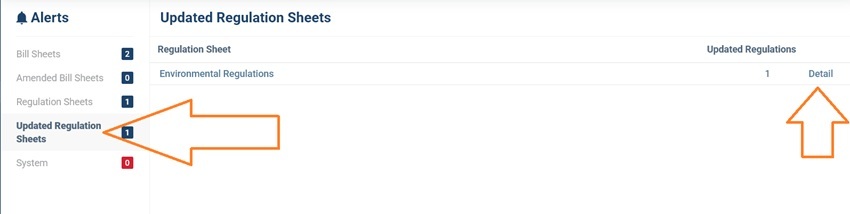
And then click Detail to see the actual regulation that has been amended:

It will show you the date the regulation was hidden and the date of the new version - this is the same regulation we identified earlier.
You can now click the title of the regulation to review it if you choose.
Note: The Updated Regulation Sheets view will only identify regulations updated in the last week, so you should remember to check it at least weekly.