


I recently wrote a blog post called State Regulatory Responses to Federal Policy Changes on Gender and Gender-Affirming Care which analyzed the states’ regulatory responses to President Trump’s executive orders on gender identity. I also discussed the analysis with the ever delightful Sarah on the podcast BillTrack50 Beyond the Bill Number, which I encourage you to check out.
As I was writing the piece I learned a lot about how to use BillTrack50’s new regulatory tracking tool which I would like to share with you now.
This blog post offers practical tips for reviewing regulations, based on my experience as a new user of the tool. I hope you find these tips helpful. Let’s dig in!
First, you need to make your first search and create a regulation sheet. This help post explains in detail how to do that.
Background
A bit of background first on the purpose of my search and how I organized my regulation tracking sheet. My goal was to examine state regulatory responses to federal policy changes related to gender and gender-affirming care.
My regulation tracking sheet includes the State, Regulation Title, and Comment Deadline columns pinned to the left side of the regulation sheet. I found pinning this information helpful for remembering which state and regulation I was monitoring while reviewing additional details about the regulation. (See this post to learn more about pinning columns.)
The next set of columns immediately following the pinned columns include Version Date, Reviewed, AI Summary, Agency, Status, and Type. The order reflects how I prefer to review the regulation information, but you may find that a different order works better for you. That’s okay! I encourage you to experiment until you find an arrangement that suits your workflow. My regulation tracking sheet also includes the additional columns provided in the default template. (See this video for a refresher on making a template).
Note: The “Reviewed” column is a custom column I added to track which regulations I’ve reviewed, allowing me to add brief notes about the regulation. These notes reminded me of key details. You can customize columns or notes however you find it most helpful. (See this blog about how to create a custom column.)
Getting Started
My initial search returned 206 regulations. I first sorted my regulation sheet by Comment Deadline to check for active comment periods related to proposed regulatory changes. Having this information helped me determine whether immediate advocacy efforts were needed. Only one regulation notice had an active comment period when my sheet was created. The regulation itself was irrelevant to my search, so I hid it. (See this post about hiding regulations.)
Because the search yielded over 200 regulations, I took a methodical approach to reviewing them. I began by sorting and reviewing the 37 federal notices to identify irrelevant regulations and uncover missing terms that might improve my search. As I was reviewing, I hid six irrelevant federal notices and discovered a few useful terms and phrases that should be included in my query (e.g., “sex-trait modifications”).
Using the “Similar” Tab
Next, I sorted the State column alphabetically. After reviewing 19 notices across six states, I discovered the “Similar” tab on the Regulation Detail page (see below).
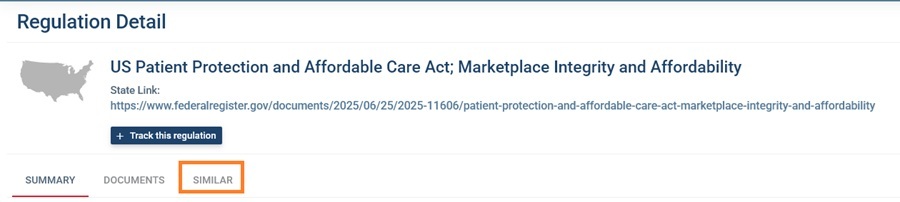
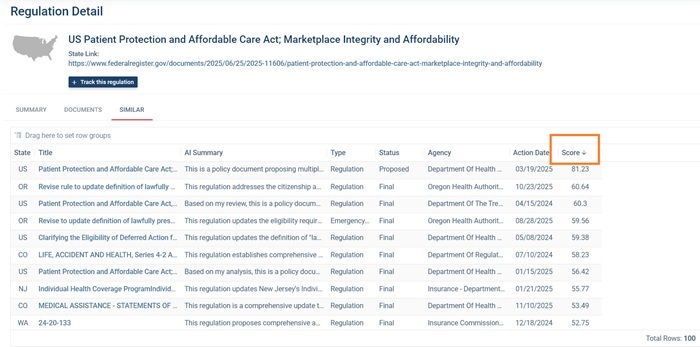
By clicking on the Similar tab, BillTrack50 provides a list of up to 100 similar notices to the specific regulation you’re viewing, along with a similarity score (0—100). The higher the score, the more alike the two notices are to one another.
Be mindful that some regulations under the Similar tab may already appear on your regulation sheet. You’ll want to carefully review the regulation notices to identify only new, relevant notices.
Note: This Similar tab is different from the “Similar” function found at the bottom of the regulation sheet (see the image below). That Similar function will exclude notices already in the tracking sheet. (See this post for a discussion of the two ‘Similar’ functions):
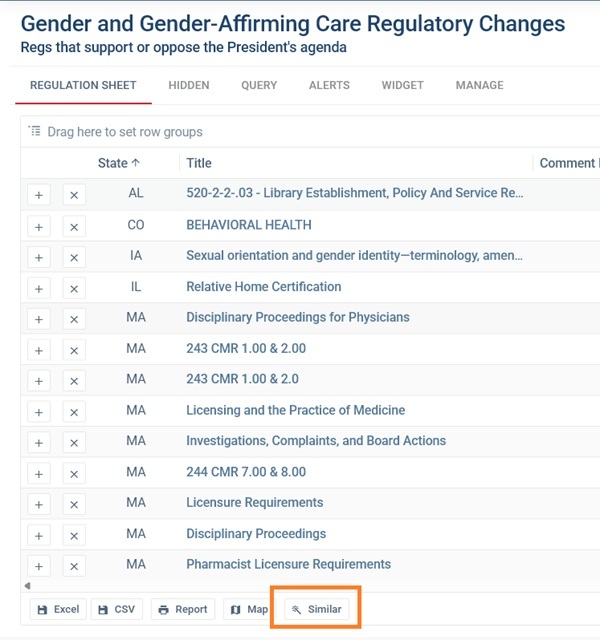
Using the Similar tab can reveal regulation notices that may not have initially appeared in your search and help you discover terms to include in your query. For example, by using the Similar function, I discovered relevant federal executive orders and an additional term (e.g., “gender transition”) that I hadn’t previously included. Once I added the new term to my query, those executive orders appeared in my tracking sheet. Having the right key terms is essential for a fruitful search!
Pro tip: Sort the Score column in descending order to view the most similar notices first.
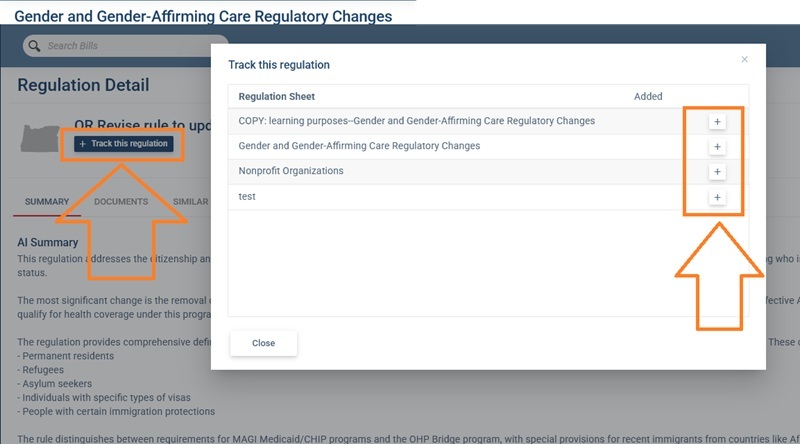
During my review, I found that most relevant federal regulatory notices were already included in my results. However, I also identified additional relevant state notices that were not previously identified. When you find a relevant regulation, click “+ Track this regulation,” then select the “+” next to regulation sheet where you are adding the regulation. A date next to the ‘+’ indicates that notice is already being tracked.
Helpful Tip: Check the Date Range and Search Terms
After reviewing the federal regulation notices, I started reviewing the state regulations. I quickly realized that one of my search terms, “medical care,” was overly broad and generated irrelevant results. Using too broad of a term in my search query was one reason my initial search resulted in over 200 regulations to review.
I also noticed that many resulting notices were from 2024, but I only needed regulatory notices from 2025. After adjusting the date range and removing the overly broad term, the number of notices I needed to review dropped to 87. This number seemed reasonable given that I was reviewing both federal and state notices.
Helpful Tip: Review the Documents
As a new user of the regulation tracking tool, don’t be surprised if your key terms are not included in the Title or the AI Summary, like the example below. For example, nothing in the Title or AI Summary in the example below indicates the regulation notice is related to my search on gender or gender-affirming care.
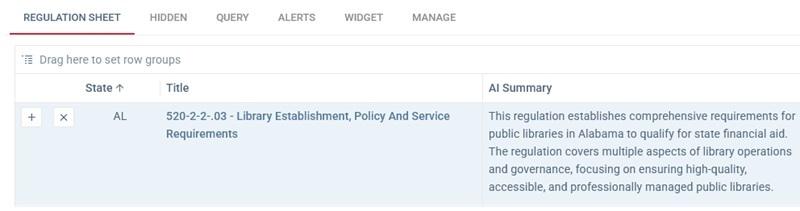
I recommend reviewing the individual documents connected with the regulatory notice. To do so, click the Title of the regulatory notice and then the Documents tab.
Sometimes there’s only one document. Other times, there may be several documents. In the example below, there are three documents in this regulatory notice.
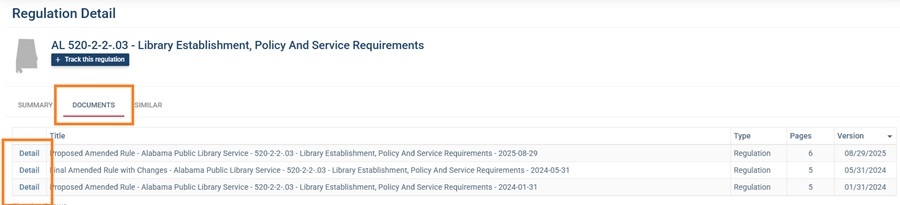
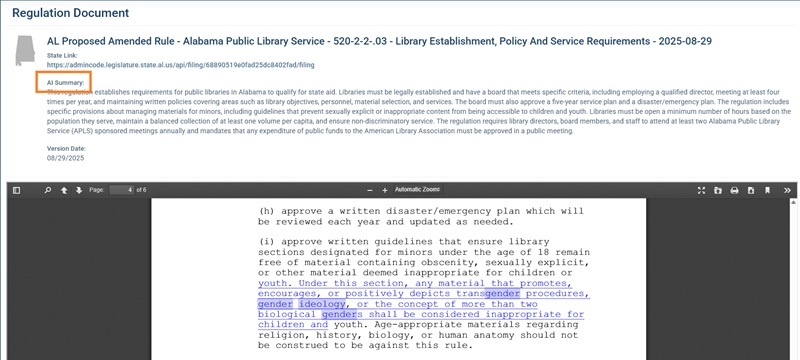
Click ‘Detail’ to view the Regulation Document page, where you’ll find the document and an AI summary of the document. The AI Summary may still not include the search terms.
Click the magnifying glass icon and enter the specific term you’re tracking. I found the best information about a regulation’s relevance within these individual documents.
A Few Caveats
- Not all documents on the Regulation Detail page will include a search term. It only takes one regulatory notice with one search term to appear on your regulation tracking sheet.
- BillTrack50 automatically highlights search terms in the documents (like the example above), but the search tool is especially helpful in long documents.
- If no terms are highlighted or searchable, the document may be a scanned image or a non-searchable PDF.
Pro tip: Click the link at the top of the Regulation Document page and download the document. Convert the PDF into a Word document or searchable PDF so you can locate your search terms more easily.
Final Helpful Tips
1. Monitor Regulatory Progress
You should be able to track each regulation from proposed changes to finalized rules, or at least to the current status of the regulatory change. In many cases, all relevant documents appear on the Regulation Detail page (see image above where “Detail” is highlighted). Sometimes, multiple rows represent different stages of the same regulation.
For example, in the case of the Patient Protection and Affordable Care Act (PPACA), one notice—version date March 19, 2025—from the Federal Register sought comments on the proposed changes. A second notice—version date June 25, 2025—included public comments and the final rules.

2. Review for Irrelevance
Carefully review each row on the regulation sheet. It’s possible that some of the notices that appeared in your search include your search terms, but are still irrelevant to your search.
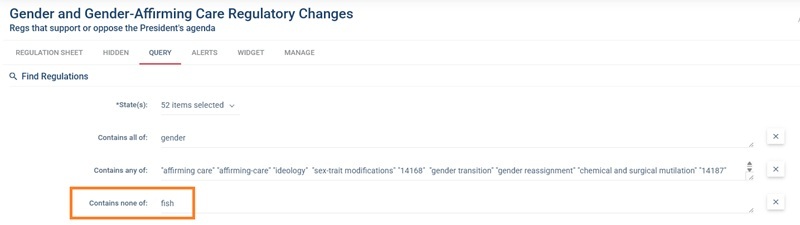
For example, several of my early results referenced the gender of fish. While funny, it was a good learning experience! When you notice irrelevant results, you can manage the query by excluding a key term from the irrelevant notices.
3. Hide Irrelevant Regulations
Click the ‘x’ at the beginning of the row to hide irrelevant notices.
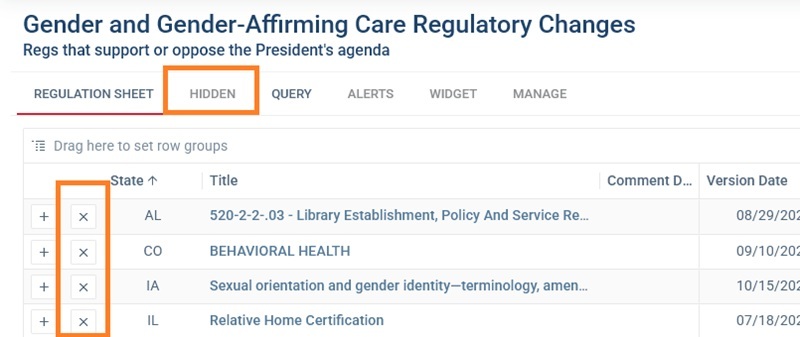
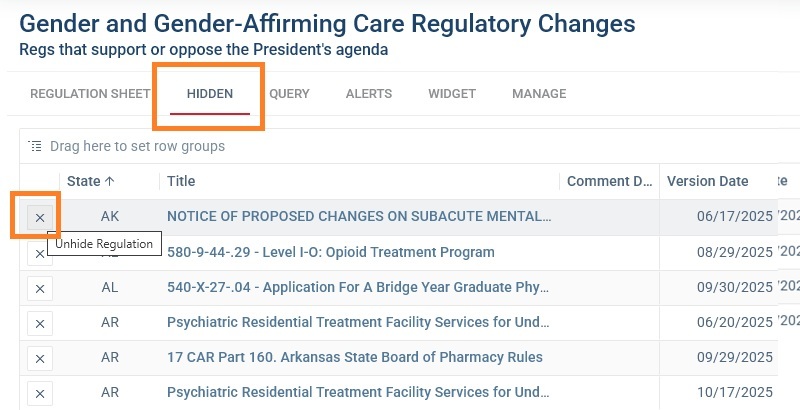
If you accidentally hide a notice, open the Hidden tab and click the ‘x’ next to the regulation to return it to your sheet.
Conclusion
Reviewing your regulation tracking sheet can feel overwhelming at first, but with the right strategy and tools, the process becomes both manageable and insightful. Don’t be afraid to adjust your filters or refine your search terms to make the process more efficient.
By experimenting with column organization, creating custom notes, and leveraging powerful features like the Similar tab and Document view, you can ensure that your tracking sheet accurately reflects the most relevant regulations for your research or advocacy efforts.
Regulatory tracking is an iterative process—each review helps refine your approach and uncover new insights. Most importantly, stay curious and patient. The more familiar you become with the tool and the nuances of your search, the easier it will be to spot patterns, identify meaningful trends, and ultimately turn a large dataset into actionable information.
Happy tracking!
About BillTrack50 – BillTrack50 offers free tools for citizens to easily research legislators and bills across all 50 states and Congress. BillTrack50 also offers professional tools to help organizations with ongoing legislative and regulatory tracking, as well as easy ways to share information both internally and with the public.