
- Blog Post
- Estimated Read Time 0:02:42
- Getting Started
An Introduction to Regulation Tracking
Regulation tracking works much the same as bill tracking. This post will walk you though all the basics.
The first thing to know is that we are looking at proposed regulations, not all current regulations. Also, unlike legislation, our regulations aren’t updated throughout the day, but rather on whatever daily, weekly, monthly, or periodic basis that state publishes their information.
Add Regulation Tracking to your Subscription
The first step is to get the regulation tracking additional subscription, if you don't have one already. The current price can be found on our pricing page, or contact us for more information.
To add the subscription, the Company Administrator should click on their name in the top left corner and select Manage Account. Then Click Subscriptions and then Add Subscription:

Then on the next page choose Regulation Sheets and go through the purchase process in the normal way. Once you have added regulations to your subscription, you will see an additional Regulation Sheets item in the blue menu on the left.
Creating a Regulation Sheet
The process for creating a sheet is the same as for a bill sheet. Click Regulation Sheets, then View All and finally Click + New Sheet.

You'll be presented with three options:
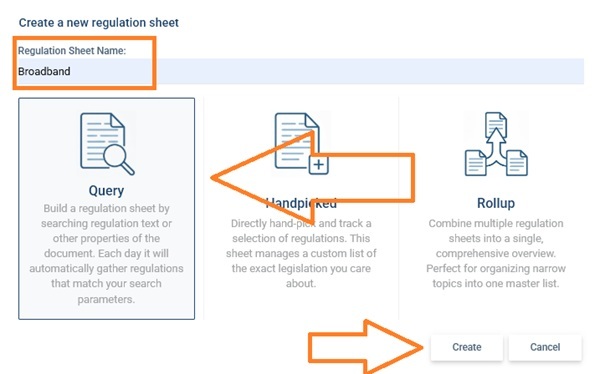
First, choose a name for your regulation sheet. You can change it later in the Manage tab. Then select from three types of regulation sheet and click Create:
Query
This is for a regulation sheet that uses a keyword search - you can add search terms and find regulations. If you leave the keyword search blank, it will return all the regulations in the system from your selected states that match your selected filters, such as agency category or regulation type.
When you choose this option, you'll be taken to the Query tab of the new regulation sheet to set up your search. See this post for more information on creating a good keyword search.
Handpicked
This option is for sheets you intend to populate by hand, by adding regulations through AI searching and so on. There is no Query tab, instead you have a Pinned tab where you can see your added regulations and remove them. There is no option to add regulations manually as regulations generally do not have an easy identifier you could use to do that.
When you choose Handpicked, you'll be taken to the main Regulation Sheet tab to see your bills. To add regulations, find them using AI similar regulatiosn search, from regulation pages or from other regulation sheets.
The remainder of this post will deal with the Query type of regulation sheet.
Make Your Query
The query tab is similar to a bill sheet (see this post for making a good bill sheet query). You choose your states in the same way, and the search conditions are the same - you can choose keyword searches using 'all of', 'any of', 'near' and 'must not contain'. These can be combined in the usual way.

The wildcard works in the same way also - 'pollut*' will find 'pollute', pollutes', 'pollution' and so on. Surrounding a phrase with " " such as "climate change" will look for that phrase.
You can filter by the type of regulation, its status, or by the agency category. We've assigned all the agencies in the country to one of 11 broad categories to help you eliminate irrelevant regulations from your search by only allowing those that are on the correct topic. Alternatively, if you are searching in just one state or federal, you can click the drop down menu and select Agency to filter by a specific agency.
NOTE: The date of a regulation on a regulation sheet will be the date for which we have the most recent activity, not the created date. So, for example, if a regulation's journey began in 2024 but it has had some kind of activity in 2025, then it is classed as a 2025 regulation for the purpose of the regulation sheet. This may affect the date ranges you choose in your search.
NOTE: Agencies are only added when they actually post some kind of new or amended regulation notice. If you can't find a specific agency, then it probably means they haven't tried to make any changes to any regulations since 2024.

For an explanation of what we mean by 'type' and 'status' for regulation tracking, see this post.
There are two options with the time period for your query - you can choose a rolling date range over a period ranging from 1 month to 24 months, or a fixed date range where you set a start and end date. See more details in this post.
Include Regulations
The final section is Include Regulations. You can add regulations manually to the sheet by clicking the + button next to a regulation in another sheet or clicking the '+ Track this regulation' button at the top of a regulation page. They will then appear at the bottom of the query tab and you can remove them by clicking the x. Unlike with bills, you cannot add regulations here by typing in a number, because there is no simple regulation number for that purpose.
Click Save to run your query and see the regulation sheet.
The Regulation Sheet
This again looks very much like a bill sheet. The columns can be sorted and filtered in the same way, and different columns can be added by creating a template. Bulletins can be hidden by clicking the X to the left.

The first thing to note here is that there is a single row for each regulation. All regulation bulletins are fully split, with descriptive titles which will help you identify regulations of interest easily. This is the default layout for new users, but there are more columns to choose from in the Regulation Sheet Templates menu (click your name in the top right to see the menu). Note the AI summary column - the summary here is for the full regulation, generated by looking at all available documents.
Hiding Regulations
You can click the X next to a regulation to move it to the hidden column, the same as for bills, to remove irrelevant regulations from your sheet. But remember, that unlike legislation, which is linear, regulations are circular in nature. Where SB51 will mean something different in Ohio every session, regulatory section 3745-02-11 will refer to that same section of code every single time. So, don't hide a regulation just because it goes final. It might pop up again soon.
Alerts
You can tailor the alerts you get in your daily regulation alerts email, in a similar way to bills:

Choose whether to get alerts when a new regulation is added to your sheet, a new document is added to a regulation, a new hearing is announced and so on. NOTE: unlike with bills, you do need to be logged in to see regulation documents. So if you click a link in an alert email, if you're not logged in to BillTrack50 you will be prompted to do so.
Widgets
You can turn your regulation sheet into a map widget, and publish on your website in a similar way to a bill map widget.
The Regulations
The Summary Tab
To see the actual regulation, you click the title. You'll be presented with an overall summary:

It is very like a bill summary tab, and gives you the state summary (if provided), our AI summary, the status, type, agency and effective date if available. To see more detail, click the Documents tab at the top:

The Documents tab
This lists all the policy documents associated with the regulation - so it can include the proposed and final regulations, notice filings, and so on.
The Regulation Document
Click Detail to see the individual document:

Note that the AI summary at the top is different from the AI summary in the regulation sheet and on the summary tab as it is a summary of just this specific document. There are a number of tools at the top to help you navigate the document. The magnifying glass lets you search for specific words and jumps you to each instance of the word. On the right, you can switch to a full screen presentation mode, print the pdf, or download the pdf to your computer.
The Similar Tab
The final tab is Similar, and this will give you a list of 100 similar regulations from around the country. The score at the end shows how similar the AI thinks the regulation is, from 0 to 100:

For an explanation of what regulations are, read this post.
For more information on tracking regulations, read our Regulation Tracking Toolbox.
For some good strategies on regulation advocacy, read this post.