
- Blog Post
- Estimated Read Time 0:05:00
- Getting Started
How to Purchase a Subscription
This post provides simple step by step instructions to make your first BillTrack50 subscription. You can also view a tutorial video here. We are happy to help you with any questions; please reach out here anytime. To review the pricing options, please visit this page. If you need alternative terms, pricing, or have other unique requirements, please reach out and we can discuss your options.
This post assumes that you have already signed up for a free account and then started a free 30-day trial. If you haven't, then see this post for signing up as a free user and this video for starting your free trial. You must have done both of these things before you can purchase a subscription.
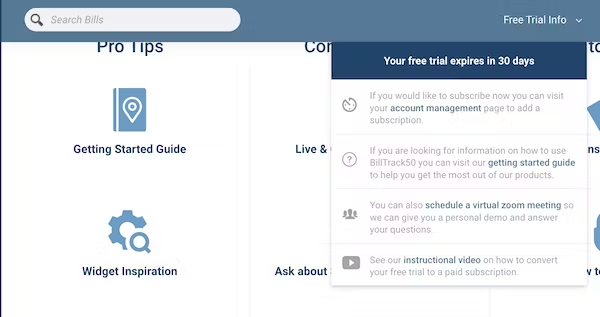
If you get stuck at any point during the following purchase process, you can always click on the "Free Trial Info" dropdown in the top bar too access several helpful links, and also see how many days are left on your trial.
Note: Only the company administrator can purchase subscriptions.
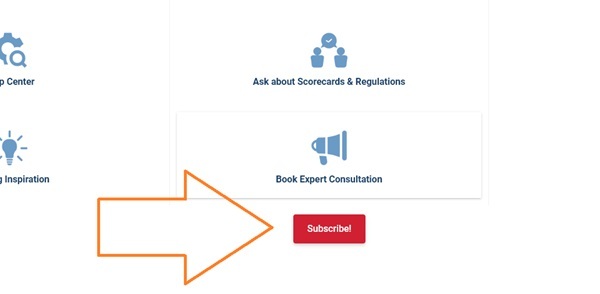
1. Click the Subscribe button at the bottom of your home page.
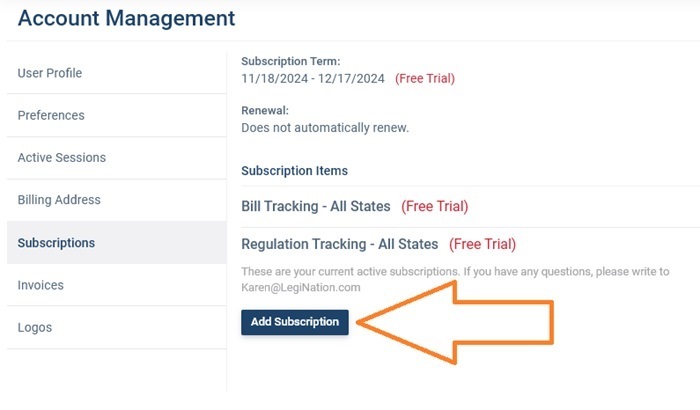
This will take you to the subscriptions section of the account menu. It will show your currently active subscriptions (in Joe's case, a free trial) and the possible subscription items (bill and regulation tracking). It also shows that Joe currently does not have his account set to auto renew subscriptions. Click Add Subscription to proceed.
2. Choose Your Subscription Products
The next page lets you first choose your legislation tracking product and then your regulation tracking product. You do not need to choose both! For either (or both) select All States or Individual States.
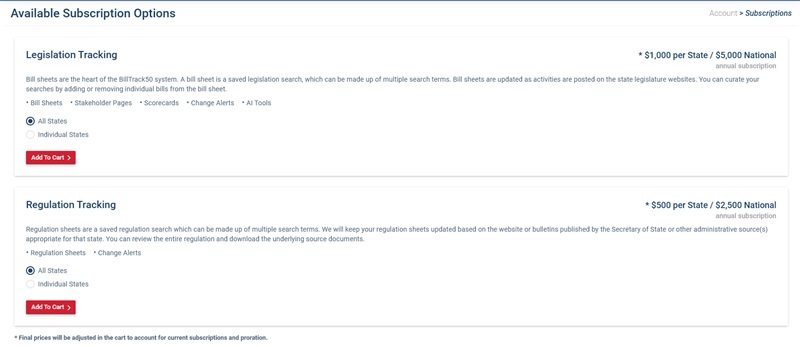
All states includes Congress and Washington D.C. city council. If you choose Individual States, you will see a drop down menu which will allow you to choose the state or states that you want to track. Again, you can choose Congress (U.S.) or Washington D.C. as individual state options. Joe has chosen to track Arizona and Arkansas.

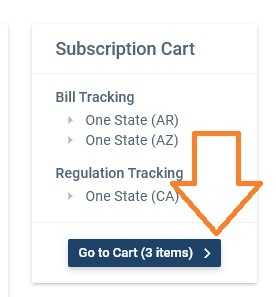
When you have chosen your states (or all states) for legislation click Add To Cart > and your choice will appear to the right. Don't worry if you make a mistake, you can change your choices on the next page. Then repeat for regulation tracking if you need to track regulations. Click Go to Cart to buy.
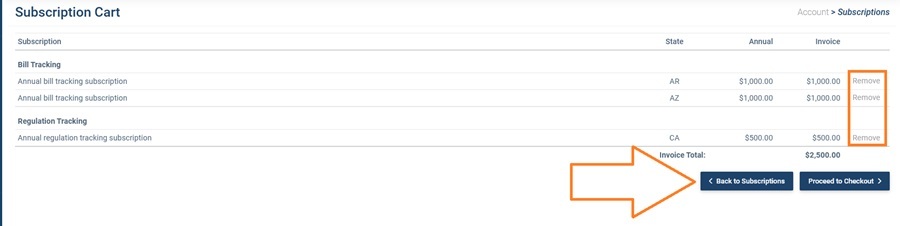
Your cart will show the items you have chosen and the prices. You have the option to go back and change your choices, remove certain items or proceed to checkout.
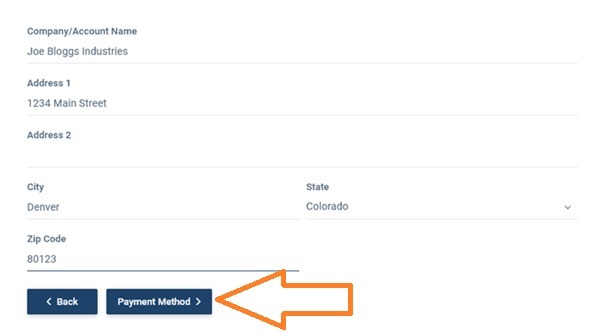
On the next screen you will need to enter your company information if you haven't already provided it. Then click Payment method to proceed.
There are two main payment options. You can choose to pay by credit card immediately or generate an invoice to pay later. Choose your option in the Payment method drop down menu.
3. Making Payment
Paying by Credit Card
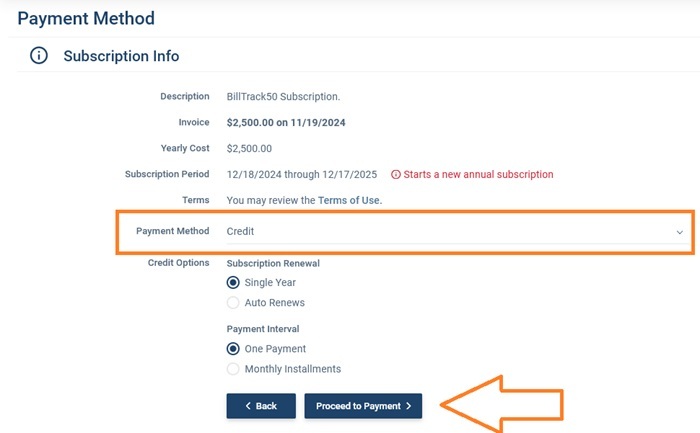
If you choose to pay by credit card, you have several more options. You can choose to auto renew or pay for a single year. If you select 'auto renews', then we will take subsequent payments automatically using the same payment method that you provide. You can cancel auto renew at any time, and you can update the payment method at a later date. You can also choose the payment interval - choose to pay for your annual subscription in one payment or monthly installments. Our subscriptions are all for a full year, so if you choose the monthly payment option you are agreeing to pay for the full year.
Click Proceed to Payment and you can enter your credit card information and click Pay Now.
Paying by Invoice
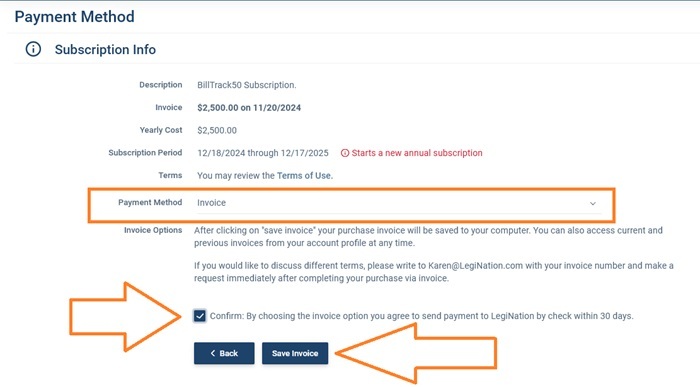
If you choose to pay by invoice, auto renew and monthly payments are not available. You will need to check the box confirming that you will make payment within 30 days. Then click Save Invoice and the invoice will be downloaded to your computer and will also be saved in the Invoices section of the account management menu. You can pay your invoice by check, credit card or ACH. If you need the ACH details or a W9, or you wish to pay using a different method, then please contact us.
Managing Subscriptions and Invoices
You can check your subscription or see paid and unpaid invoices at any time by clicking on your name in the top right and choosing Manage Account. Only the company admin will be able to see this:

Click Subscriptions to see your current products and also your auto renew status. Here, you can also add new items if, for example, you want to add some states to your subscription. The price of any additional items will be prorated for the remaining term of your existing subscription so they will all expire at the same time.

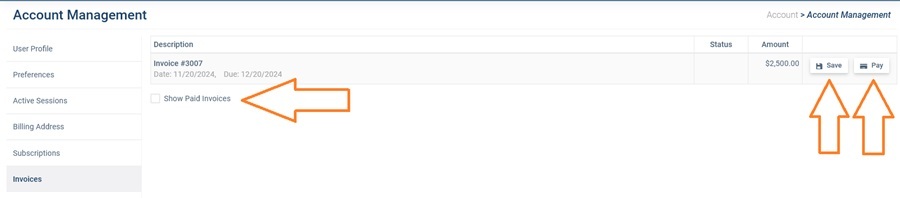
Click Invoices to see your invoices. Here, you can click Save to download an invoice or click Pay to pay it by credit card. Check the Show Paid Invoices box to see your past invoices.
Auto Renew
Auto renew is only available if you initially chose to pay by credit card. We will take payment, using the credit card information you supplied, on the renewal date of your subscription. You will receive an email reminder 30 days ahead of time.
Note: we do not store your payment information directly, payments are made using Stripe. Click here for their privacy policy.
You can switch off auto renew at any time in the Subscriptions section of the Account management menu. We will then contact you as normal when your subscription is almost finished. You can also update your payment information at any time.