
- Blog Post
- Estimated Read Time 0:02:17
- Intermediate
How to Create Powerful Searches
This post assumes you are already comfortable writing basic BillTrack50 queries and will focus on how to use the search options to create more complex searches. For a reminder of the basics of searching, see this post instead.
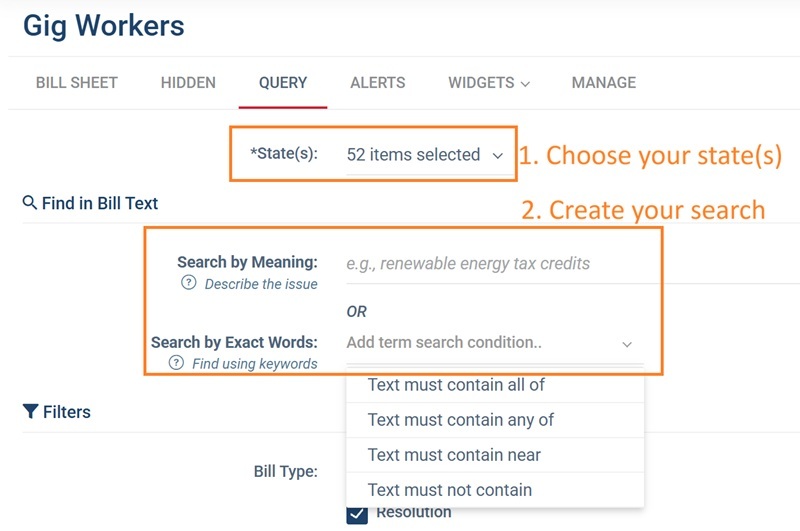
1) Choose a state (or all states) to search. Note that federal bills are listed under United States, and DC City Council is listed under Washington DC.
2) Pick the type of search.
Search by Meaning
Type a sentence or phrase describing the topic or policy you are looking for. It works like a Google search, you don't need exact words or technical language, it searches for bills that are about what you typed. For example, searching for "protecting gig workers' benefits" would find bills about "independent contractor classification" or "portable benefits" even if the words "gig worker" never appear in the bill text.
See this post for more details about how it works.
Search by Exact Words
This is a keyword search. Click on “Add a bill text search condition” to choose from the following options:
- Select “Text must contain all” to require all words or phrases listed to appear (an AND search)
- Select “Text must contain any of” is appropriate when any one of the words or phrases must appear (an OR search)
- Select “Text must contain near” to require all words to appear and to appear near each other (+/- 10 words) (an AND search)
- The “Text must not contain” option is good for words that indicate a bill isn’t interesting to you (a NOT search)
Once you select the type of search you need, you’ll need to enter your word(s):
- for multiple words, just put a space between words
- Exact phrases should have quotes around them like “Minimum Wage”
- To get all endings, use as '*' as a wildcard, so 'bank*' (would return matches for bank, banks, banking, banker, etc)
You can include additional search conditions by choosing another search type to build up a complex search. See here for more.
Note: you can use both Search by Meaning and Exact Words Search to produce more refined results.
This allows you to build complex queries. Let’s say I have a marijuana legalization topic in mind. I can enter legalization of marijuana as my straightforward meaning. I don't need to worry about punctuation, keywords, wildcards or anything complicated. The AI will understand what I want and return bills about the legalization of marijuana.
This will probably be good enough to catch the bills you want. I can use a Similar search to check for more bills to be on the safe side.
But if I want something more specific, I can combine the meaning search with a keyword search.
I can add an Any of search for marijuana marihuana cannab* thc tetrahydrocannabinol cbd.
After those words are filled in I still have the option to add more search conditions. I’m going to choose a second Any Of box to narrow down to my topic, and search for any of license registration dispens*
And, finally, because marijuana searches often find lots of driving under the influence bills, I'm going to add a None of row for dui "under the influence".
So my final query will look like this:
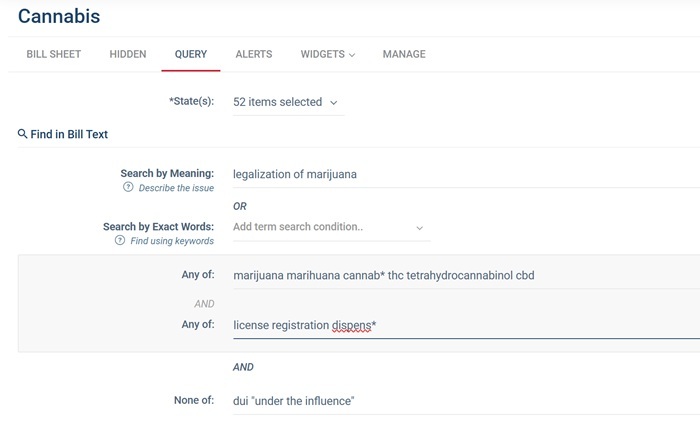
The keyword search will therefore look for any bills that have at least one of the words from the first row AND at least one of the words from the second row, and that don't have any of the words from the third row.
If you change your mind about a line you’ve added there is an x at the end to remove the line.
Overall, the search will combine the results from this keyword search with the AI results from the meaning search. The AI then combines the two sets to return a list of bills with the most relevant bills at the top. Bills that feature in both sets get extra priority and will appear higher up the list.
If you've used the Search by Meaning option (either on its own or in combination with the keyword search), the bills will be in order of relevance with the most relevant at the top. You can see the relevance score by adding the Rank column to your bill or regulation sheet template. See this post for how to change the template.
Committee Category Searching
You can further refine your search by filtering by a broad committee category. So, if I wanted to focus my search on medical marijuana, I could select the Health and Social Services category, which would eliminate bills of a more commercial nature which would be more likely to go to a Business and Industry type committee.

Bill Topic Searching
You can also choose to search or filter by bill topic. Click Add Topic, select a major topic then check all the sub topics that apply. repeat for more topics. You can leave the keyword search blank to get all bills, or combine topic searching with keyword searching for more accurate results. Here is a list of all the topics.
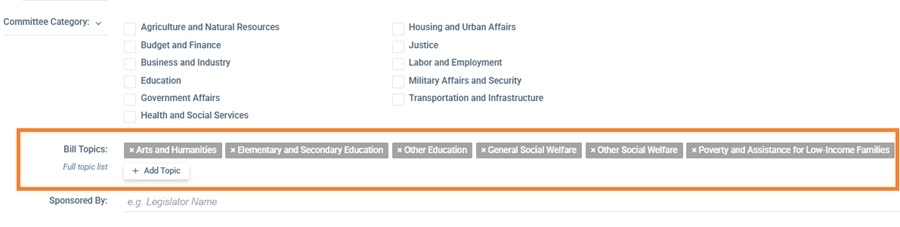
You can see which topics a bill belongs to on the Summary tab of any bill page. It is a good idea to note the topic areas of bills you want to follow, as that will help choose topics for your query.
For more detail on the topic filter, see this help post.