
- Blog Post
- Estimated Read Time 2:00
- Getting Started
Regulations FAQ
Can I have more than one column in ascending or descending order?
Yes! Click on the first column you would like to have in ascending or descending order. Clicking once will place the information in ascending order. You will see an arrow facing up.
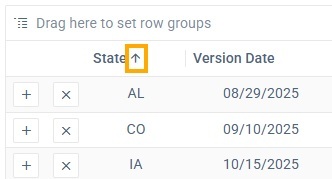
Clicking the column twice will place the information in descending order. You will see an arrow facing down.
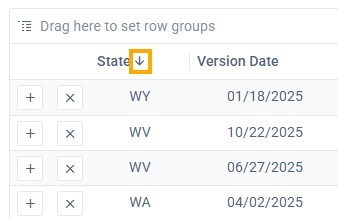
Next, holding the shift button down, click on the second column you wish to place in ascending or descending order. Choose the order in the same manner as the first column.
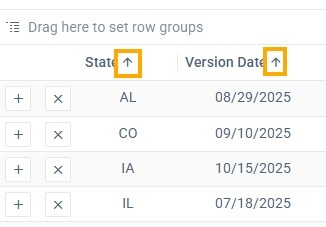
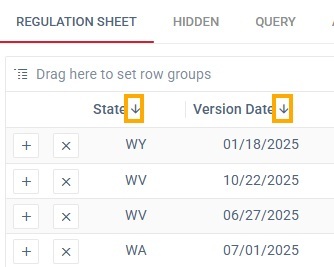
Having more than one column can be very useful. For example, if you wish to view the States alphabetically while also viewing the regulation notices by date.
How do I move a regulatory notice to a different regulation tracking sheet?
When you find a regulatory notice you would like to track on another regulation sheet, click “+ Track this regulation” on the Regulation Detail page, then select the “+” next to the regulation sheet where you are adding the regulation.
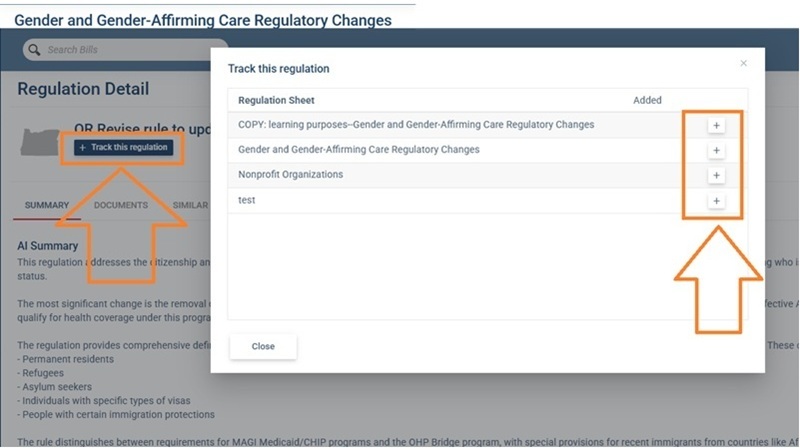
You can click the “+” beside the title from the main tracking sheet to move the regulatory notice to a different regulation sheet. A dialogue box will appear with a list of regulation sheets. Click the “+” to the right of the regulation sheet to which you would like to add the notice.
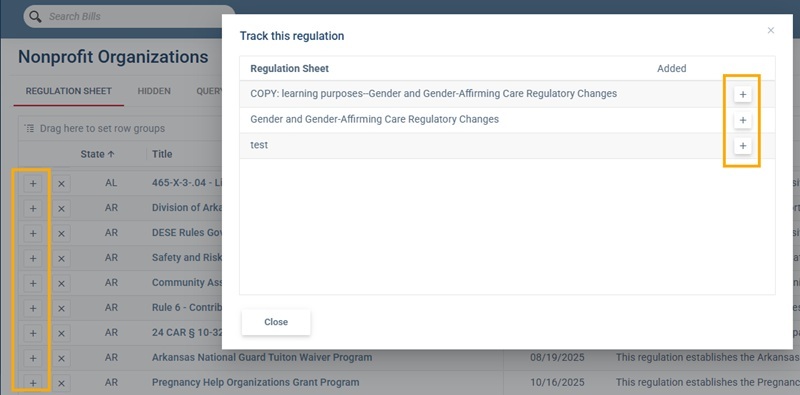
Note: the “+” on the regulation sheet will only appear if you have two or more regulation sheets.
How do I create dropdown values when creating a custom column in my regulation tracking sheet using the dropdown menu option?
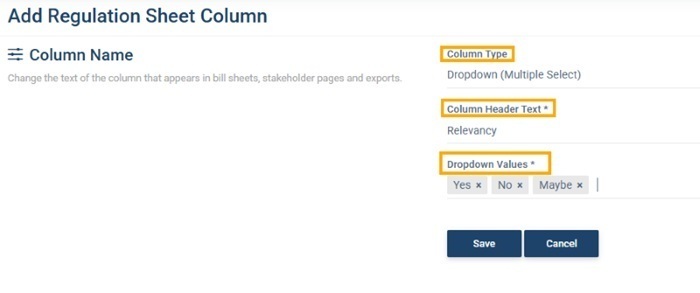
- Click “Column Type” and select “Dropdown.” You have two dropdown menu options: single select and multiple select.
- Under “Column Header Text,” give your new column a title.
- Under “Dropdown Values,” type each of your responses (e.g., yes, no, maybe). Hit enter after each possible response. For example, type ‘yes’ and click enter. The response will appear with a “x” indicating it is now a dropdown menu option.
- Click “save” and the new column will appear in your regulation tracking sheet template.
For additional information, see this post on How to Make and edit a Template.
What is the best approach to start learning how to use the regulation tracker?
You can find all available resources in the BillTrack50 Help Center. Below is a list of recommended resources to help you learn how to use the regulation tracker. While you can review the resources in any order, the following order provides a logical learning progression.
- What are Regulations?
- Regulation Tracking Toolbox
- Regulations 2.0 Webinar
- An Introduction to Regulation Tracking
- How to Read a Regulation
- How to Create a Custom Column (a video is included in this resource)
- Date Range Options on Regulation Sheets
- How to Get Daily Alert Emails for Regulations
- What are Regulation Types and Statuses
- How to Use the Bills Sheet Grid
- Two Types of ‘Similar’ Searches for Regulations
Tip: It may be helpful to create your first regulation tracking sheet after reading An Introduction to Regulation Tracking. Following the recommended order could make the information in the remaining help posts clearer and easier to follow.
Additional intermediate and advanced resources for tracking regulations are available in the BillTrack50 Help Center. Many of the resources for creating and using bill sheets also apply to regulation tracking sheets.
Why do some states provide two documents for a regulation change?
Some states publish two separate files when a regulation is updated. One file contains the official filing or notice of the changes, and the second file provides the text of the changes or the final updated text. For example, Oregon typically provides two documents: one showing the changes (with edits identified) and another clean version of the regulation.
Definitions
RFI - Request for Information
NPRM - Notice of Proposed Rulemaking